













How to Export OST Files to PST – Complete Guide
Learn how to export OST files to PST using Microsoft Outlook and professional converter software. Follow step-by-step methods to preserve emails and mailbox data.

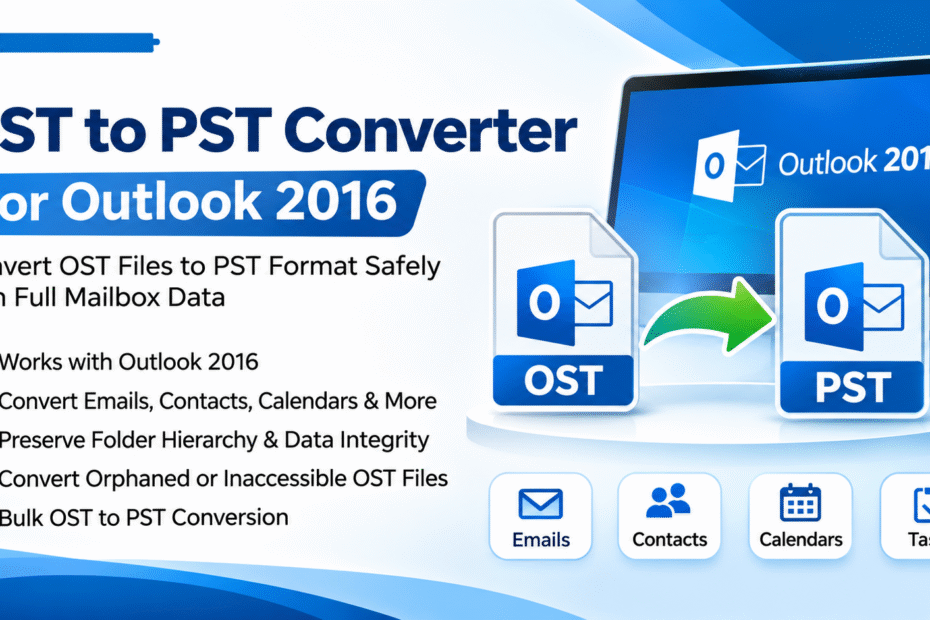
Microsoft Outlook is widely used by individuals and businesses to manage emails, contacts, calendars, tasks, and other mailbox information. It uses two common data file formats: OST (Offline Storage Table) and PST (Personal Storage Table). Although both formats store Outlook mailbox information, they serve different purposes.
An OST file maintains a synchronized offline copy of mailbox data associated with a supported email account. A PST file is commonly used for storing, backing up, archiving, and transferring Outlook mailbox information.
Many users need to export OST files to PST when migrating to another computer, creating an independent email backup, changing Outlook profiles, or preserving important business communication.
However, exporting OST files is not always straightforward. The standard Outlook export feature requires access to the original mailbox, which can become a limitation when an Outlook profile is unavailable or an OST file is orphaned.
In this guide, we explain how to export OST files to PST using Microsoft Outlook and professional OST to PST Converter Software.
What Is an OST File?
OST stands for Offline Storage Table. It is an Outlook data file that stores a local synchronized copy of mailbox information from supported Exchange, Microsoft 365, and other compatible email accounts.
OST files allow users to access previously synchronized mailbox information without an active internet connection.
An OST file may contain:
-
Inbox and Sent Items emails
-
Draft messages
-
Email attachments
-
Contacts and address book entries
-
Calendar appointments
-
Tasks and notes
-
Custom mailbox folders
-
Other supported Outlook information
The primary purpose of an OST file is to support offline mailbox access and synchronization.
What Is a PST File?
PST stands for Personal Storage Table. It is a data file used by Microsoft Outlook to store mailbox information locally.
Unlike an OST file, a PST file can generally be opened separately in a compatible Outlook profile.
Users commonly use PST files for:
-
Creating independent email backups
-
Archiving old mailbox information
-
Transferring emails between Outlook profiles
-
Migrating mailbox data
-
Managing local email storage
-
Preserving important business communication
Exporting OST data to PST format makes it easier to manage supported mailbox information independently of its original synchronized mailbox.
Why Export OST Files to PST?
There are several reasons why users prefer exporting OST files to PST format.
1. Create Independent Email Backups
Business emails often contain important customer discussions, financial records, project information, and official communication. Exporting OST files to PST helps create a separate copy of accessible mailbox data.
2. Migrate Outlook Mailbox Data
When moving to another computer or Outlook profile, users may need to transfer their existing mailbox information. PST files provide a convenient format for supported Outlook migration workflows.
3. Access Orphaned OST Files
An OST file may become orphaned after an Exchange account is deleted or an Outlook profile is removed. In these situations, specialized OST to PST converter software may help extract recoverable mailbox information.
4. Preserve Important Emails
Exporting mailbox information into PST format helps users retain important email conversations and attachments for future reference.
5. Manage Multiple OST Files
IT administrators and businesses may need to export multiple OST files. Batch conversion features can simplify the process and reduce repetitive manual work.
Method 1: Export OST Files to PST Using Microsoft Outlook
If your original Outlook account is accessible and the mailbox is functioning correctly, you can use the built-in Import/Export Wizard.
Follow these steps to export mailbox data.
Step 1: Open Microsoft Outlook
Launch Microsoft Outlook on your Windows computer and sign in to the account associated with the OST file.
Allow Outlook to synchronize the required mailbox information.
Step 2: Open the File Menu
Click the File tab in the upper-left corner of the Outlook window.
Step 3: Select Open & Export
Choose Open & Export from the available options.
Step 4: Open Import/Export Wizard
Click Import/Export to launch the Import and Export Wizard.
Step 5: Select Export to a File
Choose Export to a File and click Next.
Step 6: Select Outlook Data File (.pst)
Choose Outlook Data File (.pst) as the export format.
Click Next to continue.
Step 7: Select Mailbox Folders
Choose the mailbox folder you want to export, such as Inbox, Sent Items, Contacts, or Calendar.
Select Include subfolders if you want to export the selected folder and its subfolders.
Step 8: Choose the Destination Location
Click Browse and select the destination folder where you want to save the PST file.
Choose a location with sufficient storage space.
Step 9: Complete the Export Process
Click Finish to begin exporting the selected mailbox information.
You may also configure a password for the resulting PST file.
After Outlook completes the process, your exported mailbox data will be available in PST format.
Limitation: This method exports accessible mailbox information through Outlook. It does not directly process standalone orphaned OST files when the original Outlook profile is unavailable.
Method 2: Export OST Files to PST Using Professional Converter Software
Sometimes the manual export method is unsuitable because the original Outlook account is unavailable, the Exchange Server connection has been discontinued, or the OST file is orphaned.
In these situations, professional OST to PST Converter Software may provide an alternative.
Specialized conversion applications are designed to scan supported standalone OST files and export recoverable mailbox information into PST format.
Follow this general procedure.
Step 1: Download and Install OST to PST Converter Software
Select a reliable conversion application and install it on your Windows computer.
Before installation, check its system requirements and OST file compatibility.
Step 2: Add the OST File
Launch the software and select the Add File or Browse option.
Locate the required OST file and load it into the application.
Step 3: Scan the OST File
Start the scanning process.
The application will examine the selected OST file and attempt to identify its supported mailbox contents.
Step 4: Preview Mailbox Data
After scanning, review the available mailbox folders.
Depending on the software, you may be able to preview emails, attachments, contacts, calendars, and other mailbox items.
Step 5: Select PST as the Export Format
Choose PST from the available output formats.
Some applications may also provide additional export options.
Step 6: Choose the Destination Folder
Browse to the location where you want to save the exported PST file.
Make sure the destination drive has sufficient free space.
Step 7: Start the Export Process
Click Convert or Export to begin processing the OST file.
Wait until the application completes the conversion.
Step 8: Verify the Exported PST File
Open the resulting PST file in a compatible Outlook installation.
Check the important mailbox folders, emails, attachments, and other required information.
The exact steps and supported features depend on the selected application.
Manual OST Export vs Professional OST to PST Converter
Both methods are useful, but their suitability depends on the user's requirements.
| Feature | Manual Outlook Export | Professional Converter |
|---|---|---|
| Requires accessible mailbox | Yes | Depends on software |
| Standalone OST processing | No | Supported by some tools |
| Orphaned OST support | No | Available in supported tools |
| Bulk conversion | Limited | Available in some tools |
| Selective folder export | Yes | Usually supported |
| Preview mailbox data | Through Outlook | Depends on software |
| Additional software cost | No | May require a license |
For a working Outlook mailbox, the manual method is generally sufficient. For standalone or orphaned OST files, specialized conversion software may be more appropriate.
Important Features to Consider Before Choosing OST to PST Software
Selecting reliable conversion software is important when exporting valuable mailbox information.
Consider these features:
1. OST File Compatibility: The software should support the OST file you want to process.
2. Bulk Conversion: Batch processing helps export multiple OST files more efficiently.
3. Attachment Preservation: Important email attachments should remain accessible after conversion.
4. Folder Hierarchy Maintenance: The original mailbox structure should be preserved wherever supported.
5. Selective Export: Users should be able to select specific mailbox folders.
6. Preview Functionality: Preview options help users inspect mailbox contents before exporting.
7. Data Security: Prefer software that processes sensitive mailbox information locally when appropriate.
8. Technical Support: Reliable support can help resolve conversion-related problems.
Common Problems During OST to PST Export
Users may encounter different issues during the export process.
-
OST file not opening: The file may be damaged or inaccessible.
-
Original Outlook profile unavailable: Manual export may not work.
-
Large OST file: Conversion may require additional storage space and processing time.
-
Missing attachments: Verify attachment preservation after exporting.
-
Incomplete mailbox data: Some information may not have synchronized or may not be recoverable.
-
Export interruption: Avoid shutting down the computer during conversion.
Always preserve the original OST file and work with a separate copy whenever possible.
Frequently Asked Questions (FAQs)
1. How can I export OST files to PST?
Open Outlook, navigate to File > Open & Export > Import/Export, select Export to a File, choose Outlook Data File (.pst), select the required folders, and complete the export.
2. Can I export OST to PST without Outlook?
Some professional OST to PST converter applications support standalone OST file processing without requiring an active Outlook profile. Verify the software's requirements before using it.
3. Can I export orphaned OST files to PST?
Yes, provided the OST file contains recoverable mailbox information and the selected conversion software supports orphaned OST files.
4. Is it possible to export multiple OST files?
Yes. Some professional conversion applications provide batch processing features for exporting multiple OST files.
5. Does exporting OST to PST preserve attachments?
A suitable conversion method should preserve supported email attachments. Always verify the resulting PST file before deleting or modifying the original data.
6. Is manual OST to PST export free?
Yes. Outlook provides a built-in Import/Export Wizard that allows users to export accessible mailbox information without purchasing additional conversion software.
7. Can I open an exported PST file in Outlook?
Yes. You can open a PST file in a compatible Outlook installation through File > Open & Export > Open Outlook Data File.
Conclusion
Exporting OST files to PST is a practical way to create independent mailbox backups, migrate Outlook information, and preserve important business communication.
Microsoft Outlook's built-in Import/Export Wizard is a convenient solution when the original mailbox is accessible and functioning correctly. However, it cannot directly export standalone or orphaned OST files without access to the associated mailbox.
For these situations, professional OST to PST Converter Software can provide an alternative for scanning supported OST files and exporting recoverable mailbox information into PST format.
Before selecting a conversion solution, evaluate its compatibility, bulk conversion capabilities, attachment preservation, folder structure maintenance, and security features. Testing the software with a copy of your original OST file is a sensible way to protect important mailbox information.
Sign in to report this article
What's Your Reaction?
 Like
0
 Dislike
0
 Love
0
 Funny
0
 Angry
0
 Sad
0
 Wow
0