





















How to Use a QuickBooks Payroll Troubleshooting Guide
Managing payroll requires accurate employee information, dependable calculations, and properly maintained accounting records. When something goes wrong, even a small payroll issue can make routine tasks more difficult and may delay important payroll activities.
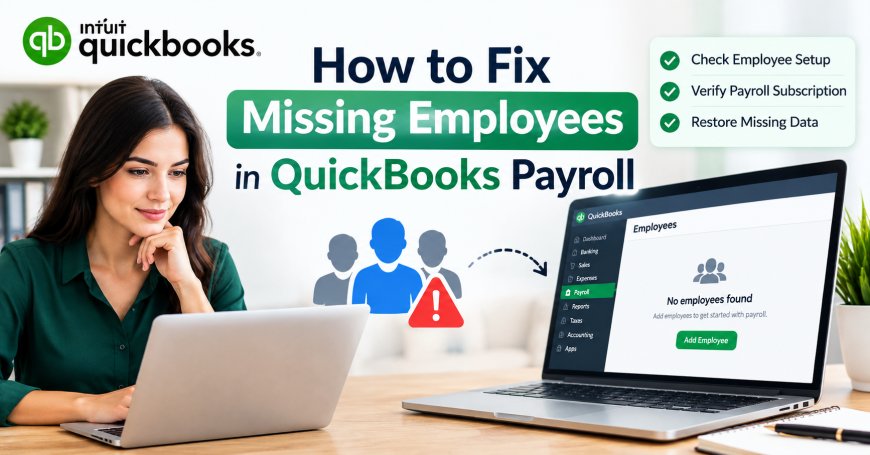
Payroll problems can appear in different ways, including incorrect employee information, missing payroll options, calculation discrepancies, outdated records, unexpected error messages, or difficulties processing payroll. QuickBooks Payroll troubleshooting guide resources can help users approach these situations systematically instead of making random changes that could create additional problems.
Understand the Payroll Problem First
Before changing any settings, determine exactly what is happening. A clear description of the problem can make troubleshooting much easier.
For example, consider whether:
-
One employee is affected or several employees are affected.
-
The problem occurs during payroll preparation or another task.
-
Employee information is missing or incorrect.
-
Payroll calculations appear unusual.
-
An error message is displayed.
-
The problem started after a software or system change.
-
Payroll worked normally before the issue appeared.
Identifying these details helps narrow down the possible causes.
Check Employee Information
Employee records are closely connected to payroll processing. Incorrect or incomplete information can cause unexpected behavior.
Review the affected employee's profile and confirm that important details are accurate. Depending on the payroll setup, this may include the employee's name, employment status, pay information, deductions, tax-related information, and payment preferences.
Avoid changing information simply to test different settings. Make only changes that you understand and that are appropriate for the employee's actual payroll situation.
Review Employee Status
An employee who appears to be missing from a payroll list may have an inactive or otherwise inappropriate status.
Open the employee records and check whether the affected worker is active. If the employee was recently added, verify that the record was saved correctly and that the information appears in the appropriate areas.
Do not immediately delete and recreate an employee record. Recreating records without understanding the cause can lead to duplicate information and unnecessary complications.
Check Payroll Settings
Payroll depends on several configuration details. A problem may occur when payroll-related settings do not match the company's current requirements.
Review the relevant payroll configuration and look for recent changes. Pay attention to employee-specific settings, payroll schedules, compensation information, and other options connected with payroll processing.
If multiple employees are experiencing the same problem, a broader payroll or company-level setting may be involved.
Look for Missing or Duplicate Employees
Employee list problems are common sources of payroll confusion. An employee may appear in one part of the software but not another, or a duplicate record may exist.
Compare the employee information carefully. Check names, employment details, and other identifying information before making corrections.
If you find duplicate records, avoid deleting anything until you understand which record contains the correct history and payroll information.
Review Payroll Filters and Lists
Sometimes the employee or payroll information is available but hidden because of a selected filter or display option.
Review the filters being used in employee and payroll-related screens. Check whether the list is showing only active employees, a particular group, or a limited date range.
Resetting an inappropriate filter can sometimes restore the expected information without changing the underlying employee record.
Confirm the Correct Company File
When working with QuickBooks Desktop, make sure you are using the correct company file.
This is especially important when several company files are stored on the same computer. Payroll information entered in one company file will not automatically appear in another.
Before making any major changes, verify the company name and the file currently open. This simple check can prevent unnecessary modifications to the wrong set of accounting records.
Restart QuickBooks
Temporary software conditions can sometimes affect how payroll information is displayed or processed.
Close QuickBooks completely and reopen it. If necessary, restart the computer as well. Then check whether the payroll problem still occurs.
Although restarting is a basic step, it can help determine whether the problem is temporary or connected to a more persistent configuration or data issue.
Check for Available Updates
Using an outdated version of QuickBooks can contribute to compatibility or functionality problems.
Check whether updates are available for the version of QuickBooks being used. Before applying an update, make sure important company data is protected and that normal backup procedures are followed.
After updating, reopen the company file and test the payroll task that was previously causing trouble.
Determine Whether the Problem Affects One Employee or Everyone
The scope of the problem provides an important troubleshooting clue.
If only one employee is affected, concentrate on that employee's record, status, payroll information, and recent changes.
If many employees are affected, investigate broader areas such as payroll settings, company-file conditions, software updates, connectivity, or other system-level factors.
This approach can save time because it prevents users from changing individual records when the underlying problem is actually affecting the entire payroll environment.
Review Recent Changes
Think about what happened immediately before the problem appeared.
Recent changes may include:
-
Adding a new employee
-
Editing employee information
-
Changing payroll settings
-
Installing software updates
-
Moving company files
-
Changing computer settings
-
Modifying payroll schedules
-
Restoring or opening a different company file
If payroll worked correctly before a particular change, that change may provide a useful starting point for troubleshooting.
Check Payroll Information Carefully
Payroll calculations depend on accurate information. If a paycheck appears incorrect, review the employee's applicable pay information and other relevant payroll details.
Do not repeatedly process payroll simply to test whether the calculation changes. Multiple test transactions can make the records harder to understand.
If a payroll calculation appears incorrect and you cannot identify the reason, preserve the original information and seek appropriate assistance before making major corrections.
Check Whether the Problem Is Limited to One Computer
For businesses using QuickBooks in a multi-user environment, determine whether the issue occurs on one workstation or across multiple computers.
If the problem appears only on one computer, local configuration, installation, permissions, connectivity, or workstation-related factors may deserve attention.
If the same issue appears for every user, the cause may be related to the company file, payroll configuration, or another shared component.
Avoid Unnecessary Reinstallation
Reinstalling QuickBooks should not automatically be the first response to a payroll problem.
Many payroll issues are related to employee records, settings, filters, updates, or company-file conditions rather than the installation itself.
Before considering a reinstall, identify the actual symptoms and complete the simpler troubleshooting steps. If software repair or reinstallation becomes necessary, protect company data first and follow appropriate procedures for the installed QuickBooks version.
Protect Payroll and Employee Information
Payroll records can contain sensitive business and employee information. Troubleshooting should therefore be performed carefully.
Avoid posting private payroll information publicly when asking for assistance. Do not share employee tax information, banking details, Social Security numbers, passwords, or other confidential information in public forums or unsecured channels.
Maintain appropriate backups and restrict access to payroll records to authorized users.
When Professional Assistance May Be Helpful
Basic troubleshooting can resolve many routine problems, but some situations require additional assistance.
Consider getting qualified help when:
-
Payroll data appears damaged or inconsistent.
-
Multiple payroll functions are failing.
-
Important historical records appear incorrect.
-
An error continues after standard troubleshooting.
-
A company file has unusual behavior.
-
Payroll calculations require detailed review.
-
You are unsure whether a correction could affect payroll records.
When seeking assistance, provide a clear description of the issue and explain what troubleshooting steps have already been completed. This makes it easier to understand the situation without repeatedly changing the same settings.
Prevent Future Payroll Problems
Preventive maintenance can reduce the likelihood of recurring payroll issues.
A good routine includes keeping employee records current, reviewing payroll settings periodically, installing appropriate software updates, maintaining reliable backups, and limiting unnecessary changes to company files.
It is also useful to document major payroll configuration changes. A simple record of what was changed and when can make future troubleshooting much easier.
Frequently Asked Questions
Why is an employee missing from QuickBooks Payroll?
An employee may be hidden because of inactive status, list filters, incomplete information, payroll configuration, duplicate records, or because a different company file is open.
Why is QuickBooks Payroll not calculating correctly?
Start by reviewing the affected employee's payroll information and applicable settings. Also consider whether the issue affects one employee or multiple employees and whether any recent changes were made.
Should I delete an employee who is causing a payroll problem?
No. Deleting an employee without understanding the problem can create additional complications. Review the record carefully before making any permanent changes.
Can restarting QuickBooks fix payroll problems?
Restarting can sometimes resolve temporary display or software conditions. If the issue continues after restarting, further troubleshooting may be necessary.
What should I do if several employees are affected?
When multiple employees experience the same issue, investigate broader settings, company-file conditions, software updates, and other shared factors instead of changing each employee individually.
When should I get additional help?
If the problem involves important payroll records, repeated errors, unusual calculations, damaged information, or uncertainty about making corrections, qualified assistance can help reduce the risk of further data problems.
Final Thoughts
Payroll troubleshooting is most effective when it follows a structured process. Instead of immediately changing or deleting records, identify the exact symptom, review employee information, check payroll settings, verify the company file, examine recent changes, and determine whether the issue affects one employee or the entire payroll system.
A careful approach can make payroll problems easier to understand while reducing unnecessary changes to important accounting records. With accurate employee information, regular maintenance, appropriate backups, and sensible troubleshooting practices, businesses can keep their QuickBooks payroll workflow more organized and reliable.
What's Your Reaction?
 Like
0
Like
0
 Dislike
0
Dislike
0
 Love
0
Love
0
 Funny
0
Funny
0
 Angry
0
Angry
0
 Sad
0
Sad
0
 Wow
0
Wow
0