














How to Convert Orphaned OST Files to PST – Complete Guide
Learn how to convert orphaned OST files to PST without the original Outlook profile. Explore conversion methods, software features, precautions, and FAQs.

Have you found an old Outlook OST file but cannot open it because the original email account or Outlook profile is no longer available? This situation is commonly known as an orphaned OST file.
Orphaned OST files can contain important business emails, attachments, contacts, calendar entries, and other mailbox information. They may remain on a computer after an employee leaves an organization, an Outlook profile is deleted, or an Exchange account becomes unavailable.
The challenge is that OST files are generally associated with the Outlook profile and account that created them. Unlike PST files, they are not designed to be freely transferred between Outlook profiles.
One possible solution is to convert the orphaned OST file into PST format using compatible conversion software. This guide explains what orphaned OST files are, why conversion may be necessary, and how to convert them safely.
What Is an Orphaned OST File?
An orphaned OST file is an Outlook offline data file that is no longer connected to its original Outlook profile or email account.
Normally, Outlook uses an OST file to maintain a locally synchronized copy of mailbox information from an associated account. When that account or profile becomes unavailable, the OST file may remain on the computer without its original connection.
An orphaned OST file may contain:
-
Inbox and Sent Items emails
-
Drafts and Deleted Items
-
Email attachments
-
Contacts
-
Calendar entries
-
Tasks
-
Custom mailbox folders
The available information depends on what was synchronized before the account or profile became unavailable.
For example, if an employee leaves a company and the administrator removes the employee's Outlook profile, the old OST file may remain on the computer. The file could still contain locally synchronized mailbox information that the organization needs to preserve.
Why Convert Orphaned OST Files to PST?
There are several reasons users and IT administrators may need to convert orphaned OST files into PST format.
1. Access Emails Without the Original Outlook Profile
An orphaned OST file may not open normally through a different Outlook profile. Some standalone OST to PST converters can scan supported files directly and extract available mailbox information.
2. Recover Important Business Communication
Orphaned OST files may contain customer conversations, project discussions, invoices, and business attachments. Converting available data into PST format can help preserve these records.
3. Migrate Mailbox Data
Organizations may need to transfer selected mailbox information to another employee, computer, or compatible Outlook environment. PST files can provide a convenient format for certain data transfer tasks.
4. Create an Additional Email Archive
Converting an orphaned OST file into PST format can help users create a separate archive of locally available mailbox information.
5. Access Old Outlook Mailbox Data
Users may discover old OST files on previous computers, external drives, or backup storage. Converting supported data into PST format can make historical mailbox information easier to manage through compatible Outlook applications.
Common Reasons OST Files Become Orphaned
Understanding why an OST file becomes orphaned can help determine the best conversion method.
-
Deleted Outlook profile: The original Outlook profile has been removed.
-
Removed email account: The associated Exchange or Microsoft 365 account is no longer configured.
-
Server disconnection: Outlook cannot connect to the original mailbox server.
-
Employee departure: An organization's administrator removes a former employee's account.
-
Computer replacement: The original computer is no longer available, but the OST file was copied elsewhere.
-
Profile corruption: Outlook can no longer use the profile associated with the OST file.
In these situations, a standalone converter may be worth evaluating.
How to Convert Orphaned OST Files to PST
The appropriate method depends on whether the original account is still accessible.
Method 1: Restore Access Through the Original Outlook Account
If the original Exchange or Microsoft 365 account is still available, restoring the account or Outlook profile may be the simplest approach.
Step 1: Check the original account
Confirm whether the email account is still active and whether you have authorization to access it.
Step 2: Configure Outlook
Create or repair the Outlook profile using the original account credentials and supported configuration.
Step 3: Allow synchronization
Open Outlook and allow it to synchronize the mailbox.
Step 4: Verify mailbox contents
Check whether the required emails and folders are available.
Step 5: Export to PST
If Outlook can access the mailbox, use its built-in export functionality to save the required folders as an Outlook Data File (.pst).
This method is appropriate when the original account and mailbox remain accessible. It does not directly open every orphaned OST file.
Method 2: Use Professional OST to PST Converter Software
If the original Outlook profile is unavailable, standalone OST to PST converter software may provide another option.
Some applications can scan supported orphaned OST files directly and export available mailbox information into PST format.
Follow this general workflow:
Step 1: Select compatible conversion software
Choose a desktop application that explicitly supports standalone or orphaned OST file processing.
Step 2: Back up the original OST file
Create an untouched copy of the orphaned OST file. Perform conversion using the copy whenever possible.
Step 3: Add the orphaned OST file
Launch the software and browse to the location of the OST file. Select the file you want to process.
Step 4: Scan the OST file
Start the scanning process. The application examines the file and identifies supported mailbox folders and data.
Step 5: Preview available mailbox information
Inspect emails, attachments, and folders. Confirm that the expected information is visible before exporting.
Step 6: Choose PST as the output format
Select PST from the available export options. If selective export is supported, choose the folders you need.
Step 7: Save the converted file
Choose a destination with sufficient free storage space and start the conversion.
Step 8: Verify the resulting PST
Open or import the PST using a compatible Outlook installation or PST reader. Check important messages, attachments, and folder structures.
The exact process depends on the software, OST file condition, and supported features.
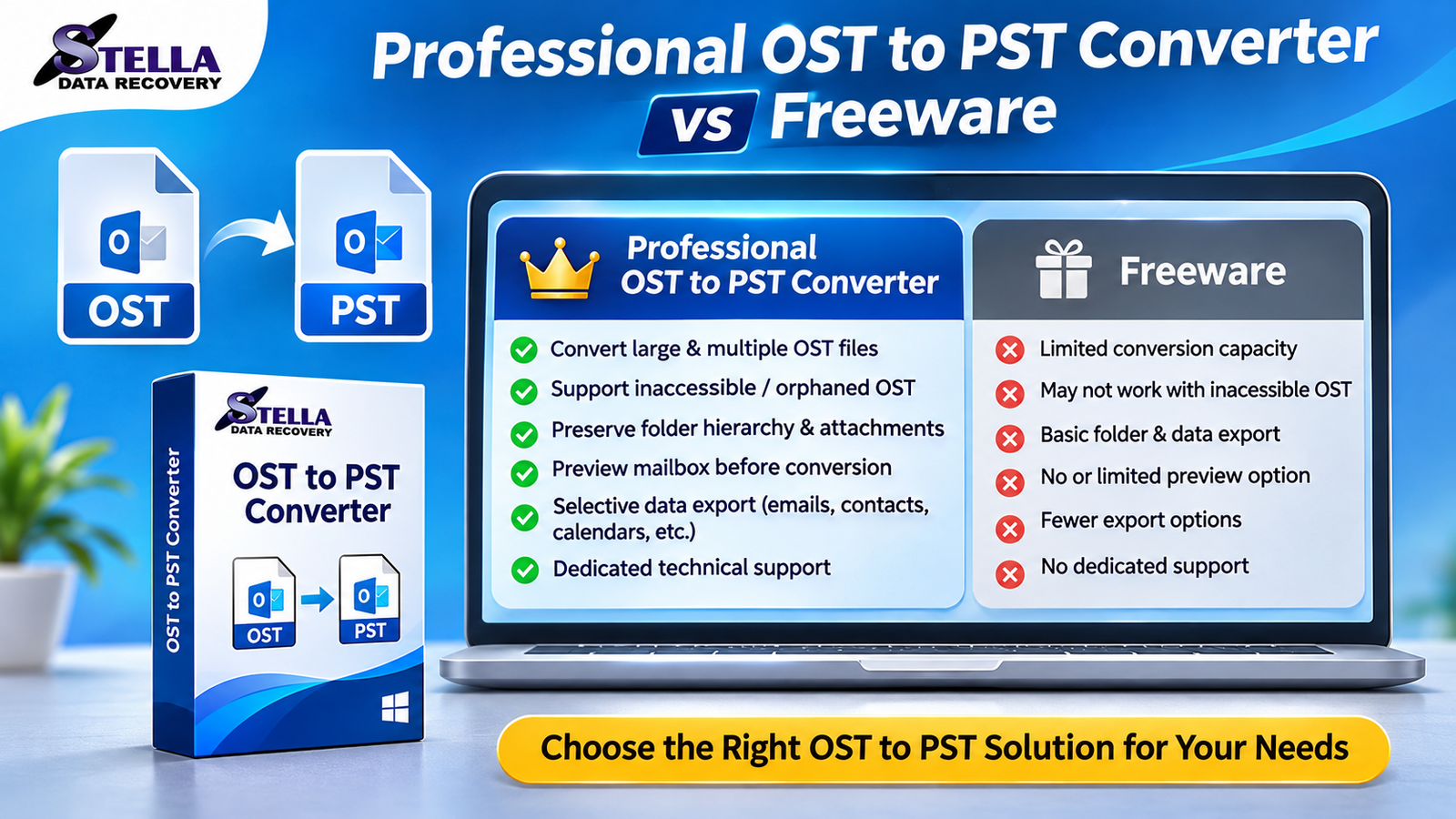
Important Features to Look for in Orphaned OST to PST Converter Software
Not every converter supports orphaned OST files. Before purchasing, evaluate these features.
1. Standalone OST File Scanning
The application should allow users to select and scan supported OST files without relying on the original Outlook profile.
2. Email Preview
Preview functionality helps users inspect available mailbox folders and messages before conversion.
3. Attachment Handling
Check whether the software supports exporting attachments along with supported email content.
4. Folder Hierarchy Preservation
Maintaining supported folder and subfolder structures makes it easier to organize converted mailbox data.
5. Selective Export
Selective conversion allows users to export specific folders instead of the entire mailbox, when supported.
6. Damaged OST File Support
Some products offer scanning or recovery features for certain damaged OST files. Check documented limitations and test the software before purchasing.
7. Data Privacy
Choose software from a trusted vendor and review its privacy policy, security practices, and processing requirements. Local processing may reduce the need to upload mailbox files, but it does not automatically guarantee complete security.
Common Problems When Converting Orphaned OST Files
| Problem | Possible Reason | Recommended Action |
|---|---|---|
| OST file cannot be loaded | Unsupported or damaged file | Check software compatibility and file condition |
| Missing emails | Data may not have synchronized | Check the original server, if accessible |
| Conversion stops | Insufficient storage or system resources | Check disk space and system requirements |
| Attachments are missing | Source data or export limitations | Preview and verify attachments |
| PST will not open | Incomplete or incompatible output | Repeat export and test with compatible Outlook |
Always keep the original OST file unchanged until the converted PST has been verified.
Why Consider Stella Data Recovery?
Users looking for a dedicated orphaned OST conversion solution can evaluate the relevant software offered by Stella Data Recovery.
Before purchasing, review the current product documentation and confirm whether the application supports standalone or orphaned OST processing and your particular file condition.
If a trial version is available, test it using a copy of your original OST file. Check whether the software can scan and preview the expected mailbox information and whether it supports exporting the available data into PST format.
Visit the Stella Data Recovery OST to PST Converter page to review current product information and available features.
Frequently Asked Questions
1. Can I convert an orphaned OST file to PST without Outlook?
Yes, some standalone third-party converters support processing orphaned OST files without requiring the original Outlook profile. This depends on the software and source-file condition.
2. Can Outlook open an orphaned OST file directly?
Generally, an OST file is associated with its original Outlook profile and account. Reconnecting the original account may restore access in some situations, but simply attaching the file to a different profile is not a reliable method.
3. Can I recover all emails from an orphaned OST file?
Not necessarily. Recovery depends on the data stored in the file, synchronization settings, and its condition. Emails that were never synchronized or are no longer present may not be recoverable.
4. Can I convert a damaged orphaned OST file?
Some converters offer scanning or recovery features for certain damaged OST files. Success depends on the extent of damage and the data still available.
5. Will attachments be preserved during conversion?
Many converters support attachment export, but results depend on the software and source-file condition. Verify important attachments after conversion.
6. Should I delete the original OST file after conversion?
No. Keep an untouched backup until you have verified that the PST opens correctly and contains the mailbox information you need.
Conclusion
Converting orphaned OST files to PST can help users and organizations preserve locally available Outlook mailbox information when the original profile or account is unavailable.
If the original account is still accessible, restoring the Outlook profile and using its export functionality may be sufficient. Otherwise, standalone OST to PST converter software may help extract supported data from certain orphaned files.
Before starting, back up the original OST file, check software compatibility, and verify the converted PST. If you need a dedicated conversion solution, explore Stella Data Recovery's OST to PST converter and review its current capabilities to determine whether it meets your requirements.
Sign in to report this article
What's Your Reaction?
 Like
0
 Dislike
0
 Love
0
 Funny
0
 Angry
0
 Sad
0
 Wow
0